
The Digital Gatekeeper of IP Identity and Network Access
DHCP: The core service enabling dynamic network configuration across client devices.
First Listen: let your ears lead the way before your mind takes notes.
📻 FZ2CCNA Radio:
Then read: let your eyes explore before your mind starts to explain.
DHCP: The IP Factory Where Every Device Gets Its Digital Name Tag
Think of a modern computer network like a busy office building where hundreds of people need to communicate and get work done every day. For everything to run smoothly, the building relies on three essential services
- Dynamic Host Configuration Protocol (DHCP) works like the reception desk, giving each visitor a temporary office number so they know where to go.
- DNS acts as the internal directory, converting names like Accounting Department into the exact room number.
- HTTP/HTTPS functions as the messenger service, carrying documents, reports, and information between people and departments.
Without these services
- Devices wouldn’t know their own office number (DHCP).
- They wouldn’t know how to find others (DNS).
- And they couldn’t send or receive information (HTTP/HTTPS).
In this section, we’ll explore these three services in a simple, practical way that even absolute beginners can understand—using real examples, clean explanations, and Cisco CLI outputs aligned with the CCNA exam.
DHCP | How a Network Gives Identity to Devices
Why DHCP Matters for Future Network Engineers
Whenever a device joins a network — whether it’s a laptop, smartphone, printer, or even a smart light bulb — the very first thing it needs is an identity. In networking, that identity is the IPv4 address, a set of numbers that tells the device
- who it is,
- where it belongs,
- and how to communicate with others.
A device without an IP address is like an employee who arrives at a massive corporate building but has no office assignment, no badge, and no instructions. They are physically present, but cannot participate in anything.
DHCP (Dynamic Host Configuration Protocol) is the automated system that prevents this chaos. It assigns
- IP addresses
- Subnet masks
- Default gateways
- DNS servers
- Lease durations
…and sometimes much more.
DHCP is the front desk of the network. Every time a device connects, DHCP says
Welcome.
Here is your address,
here is your default route,
here are your DNS servers,
and this is how long you can use them.
With DHCP, networks scale efficiently, reduce human error, and ensure that devices configure themselves instantly.
Foundations
Let’s break DHCP down into the most beginner-friendly explanation possible.
What Problem Does DHCP Solve?
In the early days of networking, administrators had to manually configure
- every IP address,
- every DNS server,
- every default gateway.
This was fine when networks had 10 devices. But today, networks commonly have 500… 5,000… or 50,000 clients.
Manual IP addressing would be
- too slow
- too error-prone
- impossible to manage
DHCP automates all of it.
Now
- A device boots up.
- Sends one broadcast request.
- Receives all the configuration automatically.
It requires almost zero human intervention.
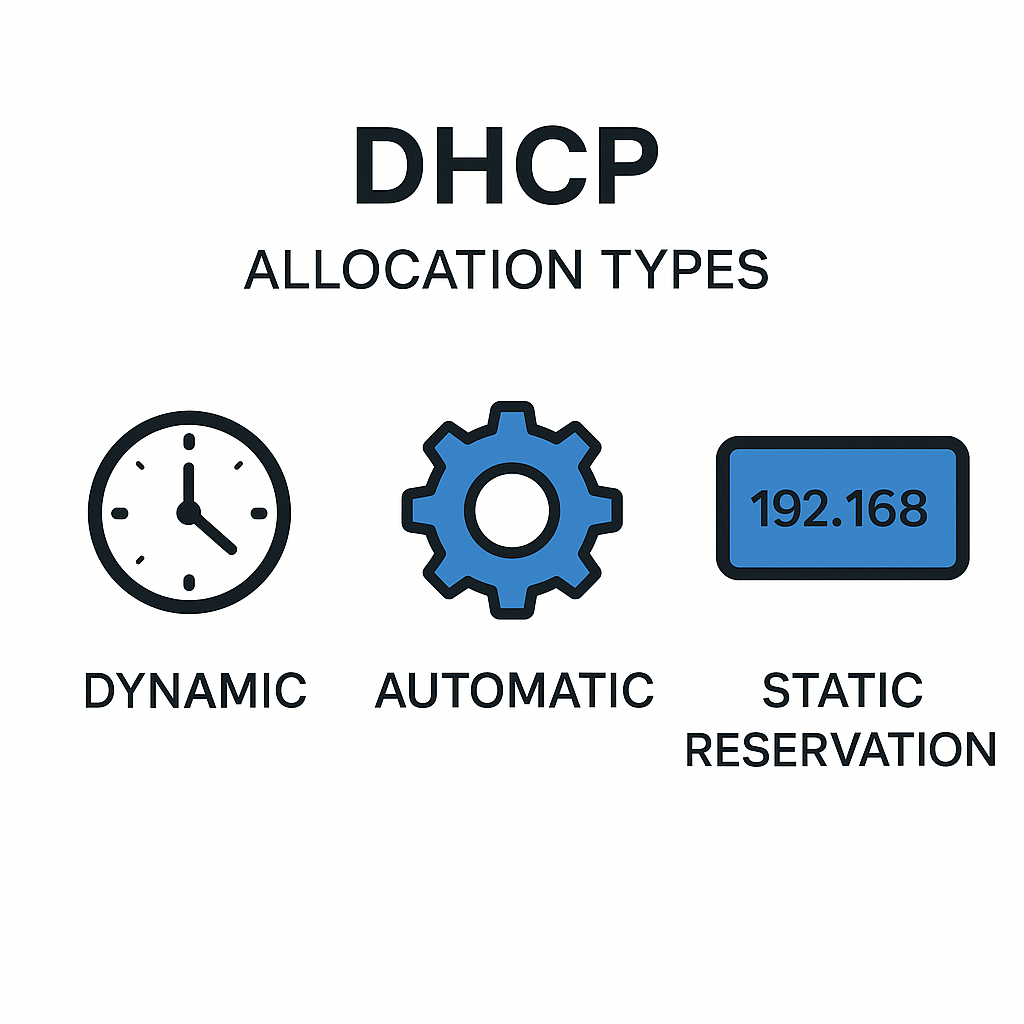
DHCP Allocation Types Dynamic, Automatic, Static Reservation.
DHCP supports three main allocation modes, and the CCNA expects you to understand all of them clearly. Every device in a network needs an IP address to communicate. In a small home network, you might have a few devices — laptops, phones, maybe a TV. But in enterprise environments, you may have thousands or tens of thousands of devices joining and leaving the network every day.
Manually configuring IP addresses for each device would be chaotic, error-prone, and impossible to scale.
This is why DHCP (Dynamic Host Configuration Protocol) is essential.
For the CCNA exam, you must understand not only how DHCP works, but also the three different allocation types it supports
- Dynamic Allocation
- Automatic Allocation
- Static Allocation (Reservation)
Each one gives the network administrator different levels of control, flexibility, and predictability.
This section will take you from absolute zero knowledge to complete mastery of DHCP allocation types, using comfortable analogies, CLI examples, real-world scenarios, and reinforced exam strategies.
When any device connects to a network — a phone joining Wi-Fi, a laptop in an office, or a security camera powering on for the first time — it needs something called an IP address. An IP address is simply a unique number that identifies the device inside the network, very much like a parking spot number identifies the exact location of a car. Without an IP address, the network wouldn’t know who is who, and devices wouldn’t know how to reach each other.
The system that gives out these IP addresses is called the DHCP server. You can imagine it as a parking-lot manager who decides which parking spot each arriving car should use. The interesting part is that the manager has three different ways of assigning parking spaces, and understanding these three ways is the key to understanding DHCP allocation. To make things easier for someone with no networking experience at all, we will imagine every situation as if it were happening in a large parking lot full of cars coming and going.
Dynamic Allocation (Most Common)
The DHCP server assigns IP addresses from a pool for a temporary period, known as the lease. The most common method is called dynamic allocation.
This is the method used in most…
- homes,
- offices,
- coffee shops,
- hotels, and almost everywhere you use Wi-Fi.
In dynamic allocation, the parking-lot manager gives each car a space, but only for a limited amount of time. It is temporary, just like parking in any open spot that happens to be free at the moment. Once the allowed time is over, the car must either renew its permission or receive a different spot.
This is exactly how an IP lease works. A device receives an IP address for a certain period. When the lease expires, the device must ask for a new one, and it may or may not receive the same address again. This system works perfectly in environments with many devices entering and leaving, because it allows the DHCP server to reuse addresses efficiently instead of permanently reserving them. This is the most flexible and widely used type.
Automatic Allocation
The server assigns an IP permanently. Once assigned, the IP never returns to the pool. This second method is called automatic allocation. This method behaves differently even though it might look similar at first.
Here, the parking-lot manager still gives the car the first available parking spot. However, once the car uses that spot for the first time, the manager records it permanently as that car’s personal space. It becomes the car’s assigned spot forever, even if the car doesn’t return for a very long time.
The key idea is that the first spot becomes the permanent spot. The car did not request a specific space, and the manager did not manually choose one for it; the system simply remembered the first space and attached it to that specific car forever.
In networking terms, this means the DHCP server chooses an available IP automatically the first time, but after that moment, the IP is permanently reserved for that device. Even though this method is not very common in large networks, it can be useful in smaller or very stable environments where the devices rarely change.
Static Allocation (Reservation)
A specific MAC address always receives the same IP. This third method is static allocation, also known as DHCP reservation.
In this case, the parking-lot manager does not wait for the car to arrive and does not pick a random spot. Instead, the manager decides ahead of time which specific parking spot is assigned to which specific car. It is exactly like a VIP reserved parking space. The manager already knows the car’s identity and has chosen a spot that will always wait empty for that car, no matter when it returns.
In network terms, the administrator manually creates a binding between the device’s MAC address and the IP address it must always receive. This method provides the highest level of control because the device’s address never changes.
Networks depend on this stability for important devices such as…
- servers,
- printers,
- cameras,
- routers,
- switches,
- firewalls,
- and access points.
If these devices changed their IP address randomly, many services would stop working or the network might not be able to find them.
The most important idea is understanding why these three methods exist.
Dynamic allocation is used for everyday devices because it is flexible and efficient.
Automatic allocation sits somewhere in the middle the DHCP server chooses the IP automatically, but once it does, the address becomes permanent without requiring manual intervention.
Static allocation is the most controlled method the administrator selects exactly which IP belongs to which device before anything connects to the network.
In a real network, all three methods can coexist peacefully. Phones, tablets, and laptops typically use dynamic allocation because they come and go constantly. Small, simple devices in stable networks might end up using automatic allocation. Critical infrastructure devices always use static allocation because they must be predictable and easy to locate. Even though every device eventually gets an IP address, the reason behind how it gets that address — whether temporary, first-come-permanent, or manually reserved — depends entirely on what the network needs.
The DORA Process Discover, Offer, Request, ACK
DHCP exchanges take place in four steps known as DORA.
IMPORTANT: This is guaranteed CCNA exam material.
When a device joins an IP network, it needs a valid configuration before it can communicate with anything else. It needs an IP address, a subnet mask, a default gateway, DNS information, and other optional settings. Instead of configuring all of this manually, most networks use DHCP.
The DORA process…
- Discover
- Offer
- Request
- ACK
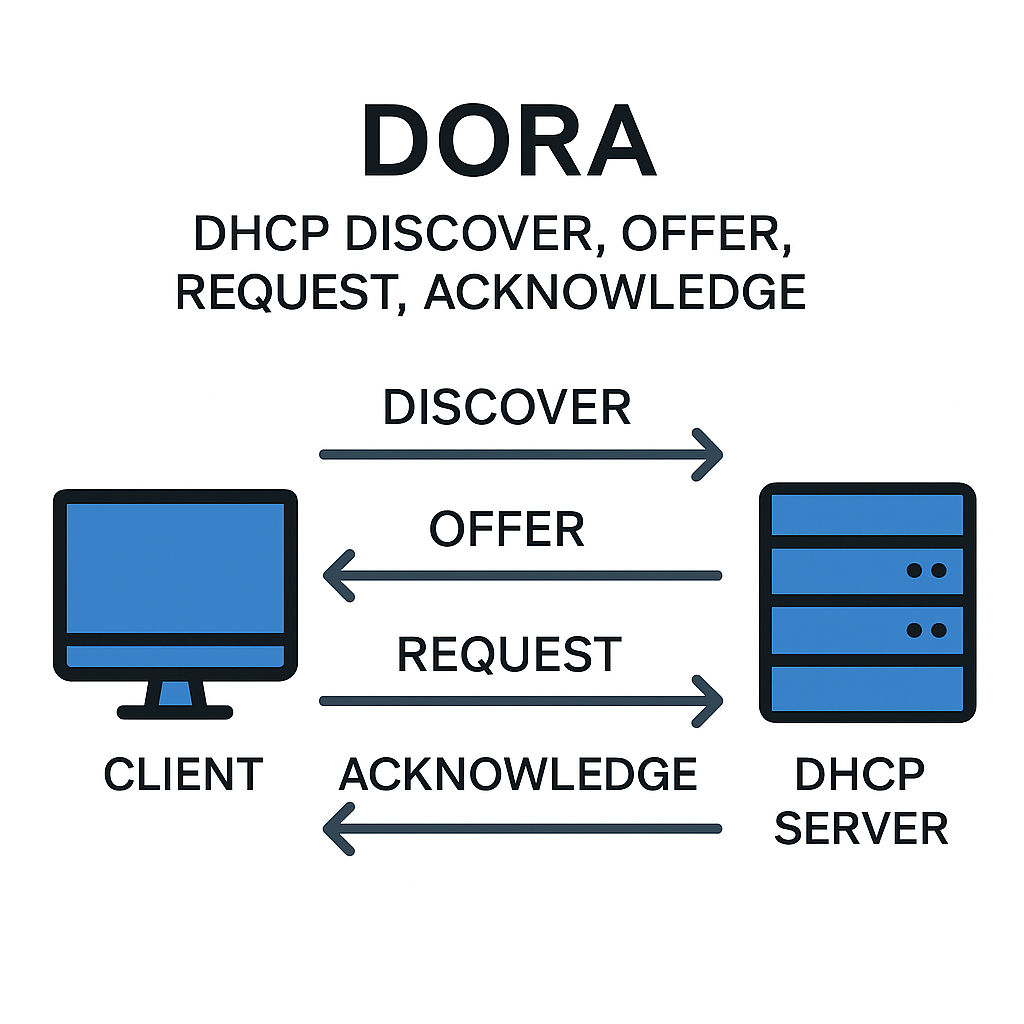
Is the sequence of messages that a device and a DHCP server exchange to complete this automatic setup. Even though the process happens very quickly and usually goes unnoticed, each of the four steps has a precise purpose, and understanding them at a detailed level is essential for real-world networking and for CCNA exams.
DHCP Discover
The process begins when a device has just brought up its network interface. At this moment, the device does not yet have an IP address, so it cannot contact any server directly. The only piece of identification it has is its MAC address.
To find a DHCP server, the device sends a DHCP Discover. Because the device does not know where the server is, it sends the Discover as a broadcast. At layer 2 the destination is FFFFFFFFFFFF, and at layer 3 it is 255.255.255.255. This ensures that the message reaches every device in the local broadcast domain, including any DHCP servers listening for new clients.
The client broadcasts: Is there any DHCP server on this network?
Because it does not yet have an IP, the message is sent to 255.255.255.255 (broadcast), destination port 67,
Source port 68.
DHCP Offer
When a DHCP server receives the Discover, it checks its address pool to see if it has a free IP address in the correct subnet. If it does, it prepares a DHCP Offer. The Offer includes the IP address the server is proposing, along with the subnet mask, default gateway, DNS servers, lease time, and other configuration details.
The Offer does not assign the address yet; it only informs the client that the server is willing to give that address. When possible, the server sends the Offer as a unicast directly to the client’s MAC address, but depending on the situation it may still send a broadcast.
Any DHCP server that receives the Discover may respond: I can offer you IP 192.168.1.50
This is also usually broadcast.
DHCP Request
When the client receives one or more Offers—because there may be multiple DHCP servers—it chooses one. To confirm its choice, the client sends a DHCP Request. The Request tells the selected server, I want the address you offered. The Request is usually broadcast so that all DHCP servers on the network can see it. This prevents conflicts, because any server whose Offer was not selected will see the Request and withdraw the address it had proposed. Once the Request is transmitted, the client is essentially asking for that specific IP to be officially assigned.
The client responds: I accept that IP from that server.
This prevents conflicts when multiple servers offered an IP.
DHCP ACK
The final step is the DHCP ACK. This is the message in which the server confirms the assignment. The ACK marks the exact moment when the IP address becomes valid. The server updates its internal database, marking the lease as active and binding that IP to the client’s MAC address. The ACK also includes the final configuration details. When the client receives it, it applies the parameters to its interface. From that point on, the device is fully configured and can communicate normally on the network.
One important detail
Discover and Request messages must be broadcast when the client still has no IP address. Because routers do not forward broadcasts by default, a client in one subnet cannot reach a DHCP server in another subnet without help. This is why DHCP relay exists. A relay agent listens for DHCP broadcasts and forwards them to the real server using unicast. On Cisco routers, the command ip helper-address enables this behavior.
Example
interface gigabitethernet0/0
ip address 192.168.10.1 255.255.255.0
ip helper-address 192.168.1.100
In this configuration, the router listens for DHCP broadcasts arriving on the interface and forwards them to the server at 192.168.1.100. This makes the DORA process work even when the client and the server are in different subnets.
If the DHCP server is running directly on a Cisco router, the administrator sets up a DHCP pool. This defines which addresses can be handed out and what default settings to include. A typical configuration looks like this
ip dhcp excluded-address 192.168.10.1 192.168.10.20
ip dhcp pool LAN
network 192.168.10.0 255.255.255.0
default-router 192.168.10.1
dns-server 8.8.8.8
The excluded addresses are reserved for devices that require static IPs. The pool tells the router which addresses to assign dynamically and which network parameters to send in the Offer and the ACK.
Internally, the DHCP server keeps a record called a lease table. Each entry contains the client’s MAC address, the IP address assigned, and the remaining time left on the lease. When a client still has a valid address and wants to stay on the network, it performs a renewal. A renewal does not repeat the full DORA sequence. Instead, the client sends a Request directly to the server before the lease expires, and the server responds with an ACK. The full DORA exchange only happens when a device has no valid IP address or when a lease has completely expired.
In packet captures, each stage of the process is easy to identify. A Discover will show the client’s IP address as 0.0.0.0, since it has none yet. An Offer is the first packet where you will see an IP that the server proposes. The Request includes the chosen IP and explicitly names the server it came from. The ACK contains the final network parameters in the DHCP options field.
For CCNA exams, several points are important to memorize.
- The order of the messages—Discover, Offer, Request, ACK—must be precise.
- Only the ACK assigns the address; the Offer does not.
- Broadcasts are used when the client still has no IP address.
- Routers do not forward DHCP broadcasts unless they are configured with ip helper-address.
- Discover and Request are broadcast; Offer and ACK can be unicast.
- The ip helper-address command forwards more than just DHCP packets, which is another common exam detail.
What Information Can DHCP Assign?
Beyond IP addresses, DHCP can deliver
- DNS servers
- Domain name
- NTP servers
- Default gateway
- TFTP servers
- Boot file (for PXE boot environments)
- NetBIOS settings
This makes DHCP incredibly flexible for enterprise networks.
Practical Examples with CLI Commands
Now let’s look at real Cisco IOS commands.
Configuring a Cisco Router as a DHCP Client
Often, routers connect to an ISP or upstream provider and receive their WAN IP via DHCP.
R1(config)# interface g0/0
R1(config-if)# ip address dhcp
R1(config-if)# no shutdown
Verification
R1# show ip interface brief
R1# show dhcp lease
Configuring a Cisco Router as a DHCP Server
Step 1 — Exclude Addresses
These are addresses reserved for static use (usually router, servers)
R1(config)# ip dhcp excluded-address 192.168.10.1 192.168.10.20
Step 2 — Create the DHCP Pool
R1(config)# ip dhcp pool USERS
R1(dhcp-config)# network 192.168.10.0 255.255.255.0
R1(dhcp-config)# default-router 192.168.10.1
R1(dhcp-config)# dns-server 8.8.8.8
R1(dhcp-config)# lease 1 12 30
(The lease above is 1 day, 12 hours, 30 minutes.)
Step 3 — Verification
R1# show ip dhcp binding
R1# show ip dhcp pool
Configuring DHCP Relay (ip helper-address)
If a DHCP server is on a different network, DHCP broadcast messages cannot reach it.
A router can forward these broadcasts as unicast to the server.
R1(config)# interface g0/1
R1(config-if)# ip helper-address 10.1.1.10
This command forwards 8 UDP services, including DHCP (67/68) and DNS (53).
Verification
show ip interface g0/1
DHCP Behavior on Windows Hosts
When studying DHCP from the perspective of network hosts, it is helpful to understand that different operating systems implement the same protocol in slightly different ways. The core DORA sequence remains identical across platforms, but the timing, renewal logic, cache handling, and tools available to the administrator vary.
Windows, Linux, and macOS all follow the standard defined by the DHCP RFCs, but each has its own practical behavior that affects…
- troubleshooting,
- packet capture analysis,
- and the way addresses are renewed or released.
Understanding these differences gives you a clearer picture of what is happening on the network every time a laptop connects, a server boots, or a desktop wakes from sleep.
Windows
Windows begins DHCP with the full DORA process when it has no IP. It stores the lease in memory and in the registry, so after a reboot it tries to reclaim the same address by sending a unicast DHCP Request to the server. If there’s no reply, it switches to a broadcast Request, and if that fails, it repeats DORA. Windows follows T1 (50%) and T2 (87%) timers, and you can force actions with:
- ipconfig /renew to renew
- ipconfig /release to drop the IP
DHCP Behavior on Linux and macOS
Linux
Linux follows standard DHCP rules but behavior varies by client (dhclient, systemd-networkd, NetworkManager). It sends a Discover only when no valid lease exists and stores its lease in /var/lib/dhcp/ for easy troubleshooting. When the interface comes up, it tries to renew the previous IP with a unicast Request; if that fails, it uses broadcast, and if the lease has expired, it performs a full Discover. Linux also provides detailed logs, and commands like dhclient -r or dhclient can force release or renewal.
macOS
Linux renueva DHCP usando el lease guardado en /var/lib/dhcp/ y solo envía un Discover cuando no tiene un lease válido. Al activar la interfaz, primero intenta un unicast Request; si falla, usa broadcast y, si el lease expiró, hace un Discover completo. Los logs muestran más detalles, y comandos como dhclient -r o dhclient permiten liberar o reiniciar el proceso.
Across the three operating systems
All three systems follow the DORA process when no valid lease exists. They differ mainly in how long they try to reuse a previous address, how they store lease information, and which tools administrators use. Windows relies on ipconfig, Linux uses dhclient/NetworkManager/systemd-networkd, and macOS provides a smoother interface but follows the same protocol.
For exam preparation
It is valuable to remember that operating systems will not perform the full DORA sequence every time a cable is plugged in or a Wi-Fi link comes up. If the lease is still valid, they will attempt to renew directly with the server using a unicast Request. Only when that fails or the lease has expired will they fall back to Discover.
Another important exam detail is that all systems rely on the broadcast domain for Discover and Request messages and therefore require DHCP relay when crossing router boundaries. Understanding these behaviors helps in diagnosing issues such as clients receiving addresses from wrong pools, clients unable to renew leases, and clients repeatedly falling back to APIPA addresses.
Windows
Check IP settings
ipconfigView full DHCP details
ipconfig /allRenew IP
ipconfig /release
ipconfig /renew
Important fields
- DHCP Enabled Yes
- IPv4 Address
- Default Gateway
- DNS Servers
- Lease Obtained / Lease Expires
Linux (dhclient-based systems; NetworkManager behaves similarly)
Check IP settings
ip a
ip addr show
View full DHCP details
- cat /var/lib/dhcp/dhclient.leases
- or on some distros
- journalctl -u NetworkManager
Renew IP
sudo dhclient -r
sudo dhclient
Important fields
- inet (IPv4 Address)
- gateway (via ip route)
- DNS Servers (via /etc/resolv.conf)
- lease start / lease end (inside lease file)
macOS
Check IP settings
ifconfig
networksetup -getinfo "Wi-Fi"
View full DHCP details
ipconfig getpacket en0
(change en0 to the correct interface)
Renew IP
- GUI Network Settings → Renew DHCP Lease
- Terminal (force fresh negotiation)
- sudo ipconfig set en0 BOOTP
- sudo ipconfig set en0 DHCP
Important fields
- IP address (inet)
- Router (Default Gateway)
- DNS Servers
- LeaseStartTime / LeaseExpirationTime (in ipconfig getpacket output)
Configuration Scenarios & Walkthroughs
Let’s walk through a common CCNA-style scenario.
Scenario A Router Serves DHCP to a LAN and is a DHCP Client on the WAN
WAN Interface (DHCP Client)
interface g0/0
ip address dhcp
no shutdown
LAN Interface with DHCP Pool
interface g0/1
ip address 192.168.50.1 255.255.255.0
no shutdown
ip dhcp excluded-address 192.168.50.1 192.168.50.20
ip dhcp pool LANPOOL
network 192.168.50.0 255.255.255.0
default-router 192.168.50.1
dns-server 8.8.8.8
lease 2
Scenario DHCP Server on Another Network (Relay)
interface g0/1
ip helper-address 10.10.10.5
Common Mistakes & How to Avoid Them
Here are the mistakes CCNA candidates frequently make
Forgetting to exclude IPs
- DHCP might assign its own gateway IP, causing conflicts. One frequent mistake is forgetting to exclude addresses that should never be assigned by DHCP. If the administrator does not configure excluded addresses, the DHCP server may hand out the default gateway or other critical static IPs, creating immediate conflicts.
Wrong ip helper-address
- If the address is wrong, no clients will get an IP. Another common issue is entering the wrong ip helper-address, which prevents all clients in that subnet from receiving DHCP information because their broadcasts are never forwarded to the correct server.
Missing no shutdown
- The interface stays down, and DHCP won’t work. Candidates also often overlook the no shutdown command on router interfaces; if the interface is administratively down, clients cannot send or receive DHCP messages through it.
Confusing Dynamic vs Automatic allocation
Dynamic = temporary
Automatic = permanent
- There is also confusion between dynamic and automatic allocation modes. Dynamic allocation provides a temporary lease that expires, while automatic allocation permanently assigns the first address a client receives, similar to a static DHCP reservation.
Expecting DHCP to cross routers
- DHCP does not cross routers without helper-address. Another widespread misunderstanding is assuming DHCP broadcasts travel across routers. DHCP does not cross Layer 3 boundaries unless a helper address is configured, and expecting it to work without one leads to troubleshooting dead-ends.
CCNA Exam Tips & Strategies
- Expect at least one DORA question.
- Know the UDP ports 67 server, 68 client.
- Memorize what ip helper-address forwards.
- DHCP pool configuration appears often in simulation questions.
- Understand how to read show ip dhcp binding.
- Know the difference between DHCP client mode and DHCP server mode.
Key Facts to Memorize
Essential DHCP Commands
- ip dhcp excluded-address A.B.C.D
- ip dhcp pool NAME
- network A.B.C.D MASK
- default-router A.B.C.D
- dns-server A.B.C.D
- lease DAYS HOURS MINUTES
- ip address dhcp
- ip helper-address A.B.C.D
Important Ports
- DHCP Server → UDP 67
- DHCP Client → UDP 68
DORA Sequence
- Discover
- Offer
- Request
- Acknowledgment
Summary
The DORA process is a structured conversation that turns an unconfigured device into a fully functional participant in the network. It allows for automatic, scalable address assignment with no manual intervention. Understanding how each message works, how the broadcast domain affects connectivity, and how DHCP relay makes the process possible across subnets is essential for network engineers. The entire procedure is simple in concept but deeply important in practice, forming one of the foundations of modern IP networking.
DHCP is one of the foundational services in any IPv4 network. It automatically gives devices everything they need to communicate
- IP address
- Mask
- Gateway
- DNS
It does this through a simple but powerful four-step process (DORA), and Cisco IOS offers flexible configuration options, allowing routers to operate as DHCP clients, servers, or relays.
Understanding DHCP is not only essential for real-world networking — it’s a guaranteed topic on the CCNA exam, and mastering it gives you a massive advantage when designing or troubleshooting networks.Next
What Did You Learn Today?
Let’s Find Out!
Instructions
- Select the correct answer for each technology concept.
- All questions pertain directly to the networking technologies explained.
- After answering, click “See Result” to see your score and feedback.