
Configuring Router Interfaces (Cisco)
Routers forward traffic only when interfaces are correctly defined, enabled, and verified. On Cisco IOS / IOS XE, interface work usually follows a repeatable flow:
- confirm the hardware and ports are recognized
- configure the interface (Layer 1/2 as needed, then Layer 3)
- bring it up (no shutdown)
- verify link, addressing, and routing
- validate neighbors and end-to-end reachability
This post covers routed Ethernet interfaces, loopbacks, router-on-a-stick subinterfaces (802.1Q), common WAN handoffs, and a practical troubleshooting toolkit.
1) Pre-checks Before You Touch Interface Config
Start by confirming the router is stable and the interfaces exist.
Platform and hardware
show version
show inventory
show platform
show environment all
Interface overview
show ip interface brief
show interfaces description
show interfaces
If interfaces are missing or constantly flapping, solve cabling/SFP issues before you continue.
2) Interface Naming and Identifiers
Cisco interface names are composed of a type plus an identifier.
Common identifier formats:
- GigabitEthernet0/0 (slot/port)
- TenGigabitEthernet1/0/1 (module/slot/port)
- Serial0/0/0 (WAN serial)
- Loopback0 (logical)
To avoid mistakes, always confirm the exact name from:
show ip interface brief
3) Two Main Physical Interface Families
Ethernet interfaces
You will typically use these for LAN uplinks, WAN handoffs, and trunk links:
- Ethernet, FastEthernet, GigabitEthernet
- TenGigabitEthernet, TwentyFiveGigE, FortyGigabitEthernet, HundredGigE
Serial interfaces (legacy / labs)
Used for point-to-point leased lines and older WAN designs, often requiring:
- HDLC or PPP encapsulation
- Clock rate on DCE side (in labs)
4) Loopback Interfaces (Recommended)
Loopbacks are virtual interfaces that remain up unless the router is down or you shut them manually. They are widely used for stable management and routing IDs.
Router(config)# interface loopback0
Router(config-if)# ip address 10.255.255.1 255.255.255.255
A /32 loopback is common because it represents a single host address.
5) Configure a Routed Ethernet Interface (IPv4)
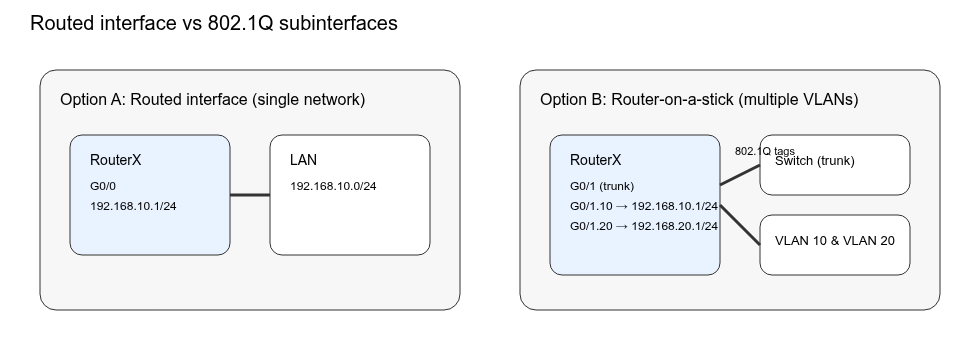
A routed interface is a Layer 3 port with an IP address. This is one of the most common Enterprise configurations.
R1# configure terminal
R1(config)# interface GigabitEthernet0/0
R1(config-if)# description To-LAN-Switch-Uplink
R1(config-if)# ip address 192.168.10.1 255.255.255.0
R1(config-if)# no shutdown
Verify
show ip interface brief
show running-config interface GigabitEthernet0/0
show interfaces GigabitEthernet0/0
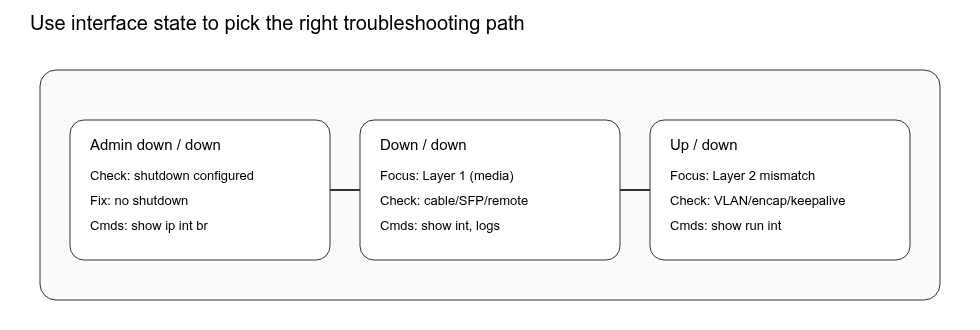
If the interface shows administratively down, you forgot no shutdown. If it shows down/down, focus on Layer 1 (media, cable, optics, remote port).
6) Router-on-a-Stick (802.1Q Subinterfaces)
When you need one physical router interface to serve multiple VLANs, you create subinterfaces and apply 802.1Q encapsulation. This is common in branches and labs.
Example: trunk from router G0/1 to a switch carrying VLAN 10 and VLAN 20.
R1# configure terminal
R1(config)# interface GigabitEthernet0/1
R1(config-if)# description Trunk-to-Access-Switch
R1(config-if)# no shutdown

R1(config)# interface GigabitEthernet0/1.10
R1(config-subif)# encapsulation dot1Q 10
R1(config-subif)# ip address 192.168.10.1 255.255.255.0

R1(config)# interface GigabitEthernet0/1.20
R1(config-subif)# encapsulation dot1Q 20
R1(config-subif)# ip address 192.168.20.1 255.255.255.0
What to verify
- The switchport facing the router must be a trunk and allow the VLANs.
- The VLAN IDs on the router must match the trunk VLANs.
- Hosts must use the router subinterface IP as their default gateway.
Troubleshooting commands
show ip interface brief
show interfaces GigabitEthernet0/1 trunk   (!switch-side)
show interfaces GigabitEthernet0/1.10
show arp
7) Common WAN Handoff Patterns
a) Static IP from ISP (typical business circuit)
interface GigabitEthernet0/0
description To-ISP
ip address 203.0.113.2 255.255.255.252
no shutdown

ip route 0.0.0.0 0.0.0.0 203.0.113.1
Verify:
show ip route
ping 203.0.113.1 source 203.0.113.2
traceroute 8.8.8.8 source 203.0.113.2
b) DHCP client on WAN (common in small branches)
interface GigabitEthernet0/0
description To-ISP-DHCP
ip address dhcp
no shutdown
Verify:
show dhcp lease
show ip interface brief
show ip route | include 0.0.0.0
c) PPPoE (seen with some providers)
PPPoE deployments vary by platform and ISP requirements. The key idea is: the physical interface runs PPPoE discovery and a dialer interface carries the IP address and authentication. Your first checks should always be:
show interfaces
show pppoe session
show ip interface brief
If PPPoE is failing, confirm credentials, access VLAN tagging requirements, and MTU/MSS policy.
8) Serial Interface Basics (When Needed)
Example using PPP on a serial point-to-point link:
R1(config)# interface Serial0/0/0
R1(config-if)# description P2P-to-Remote
R1(config-if)# encapsulation ppp
R1(config-if)# ip address 10.10.10.1 255.255.255.252
R1(config-if)# no shutdown
Lab-only (DCE clocking):
R1(config-if)# clock rate 64000
Useful checks:
show interfaces Serial0/0/0
show controllers serial 0/0/0
debug ppp negotiation   (!use carefully)
9) Neighbor Discovery on the Link (CDP/LLDP)
To confirm what is connected directly:
show cdp neighbors
show cdp neighbors detail
(or)
show lldp neighbors
show lldp neighbors detail
This helps validate cabling, remote device identity, and the remote port ID.
10) Troubleshooting Toolkit for Interface Problems
Use status to decide where to troubleshoot.
First look
show ip interface brief
show interfaces <int>
show running-config interface <int>
show logging | include <int>
Interpret common states
- administratively down/down — no shutdown
- down/down — media/cable/SFP/remote port down
- up/down — Layer 2 mismatch (encapsulation, VLAN tagging), keep alive problems, or a policy issue
Check counters and errors
From show interfaces <int> focus on:
- CRC/input errors
- drops/overruns
- interface resets
- frequent link transitions
Confirm forwarding and routing
show ip route
show ip cef <destination>
ping <next-hop> source <interface-ip>
traceroute <destination> source <interface-ip>
Routed Ports vs Subinterfaces (802.1Q)
Interface State — Troubleshooting Focus
A Simple ChecklistIf
When you finish any interface change, run this checklist in order:
show ip interface brief
show running-config interface <int>
show interfaces <int>
show cdp neighbors detail or show lldp neighbors detail (if applicable)
ping <next-hop> source <interface-ip>
show ip route (and confirm the expected connected networks and default route if WAN)
A brief note to avoid confusion:
* Some routers (or L3 switch ports) require no switchport to make an interface routed. On classic ISR routers you won’t see switchport, but on some platforms you might. If your device supports switchport mode, make sure the interface is routed (no switchport) before assigning an IP.
* From point 6) shutdown vs no shutdown “up/down is usually L2 mismatch (VLAN tagging/encapsulation/keepalives)” but: speed/duplex mismatch (rare now but still happens). Wrong SFP type / optical mismatch. STP blocking on the switch side can still show link up but traffic fails.
* On “Router-on-a-stick: mention switch-side trunk requirements” — On the switch: trunk mode + allow VLANs + correct native VLAN (if used).
* + Troubleshooting commands:
show arp
show ip protocols
show interfaces counters errors
* If you’re not sure what a command or feature does, Google it and verify it in the official docs. Being comfortable researching quickly is a core skill for network engineers.
Questions, comments, or just wanna drop a ‘hey’?
Email: fromzerotoccna@gmail.com